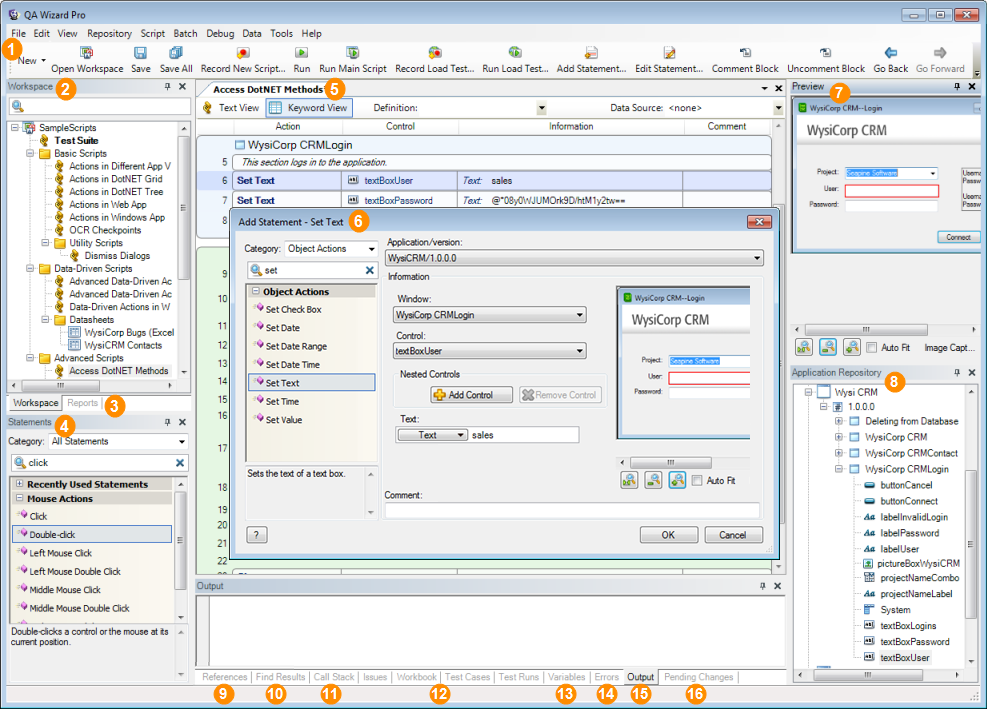
Take some time to get familiar with the interface before you start working in QA Wizard Pro.
Tip: You can move and hide panes to display only information you need in your preferred layout. See Customizing the interface.
| # | Area | Use to: |
|---|---|---|

|
Toolbars | Access the most commonly used QA Wizard Pro actions. To display or hide a toolbar, choose View > Toolbars and the toolbar name. |

|
Workspace pane | Organize test data, including scripts, batches, and datasheets. |

|
Reports pane | View reports generated after running scripts. |

|
Statements pane | View statements you can add to scripts. Double-click a statement to open the Add Statement dialog box. |

|
Script pane | Edit and view scripts, reports, and datasheets. You can work with scripts in Keyword View or Text View. |

|
Add/Edit Statement dialog box | Add and edit statements in scripts. Available in both Keyword View and Text View. |

|
Preview pane | Preview application screenshots captured during playback. |

|
Application Repository pane | Manage tested applications, versions, windows, and controls. Window and control information stored in the application repository is used to locate objects and compare properties during script playback. |

|
References pane | View all references to a variable, function, or subroutine found when searching scripts. |

|
Find Results pane | View text found when searching scripts. |

|
Call Stack pane | View the stack of function calls made until an error or breakpoint occurs, which can help you debug scripts. |

|
Helix ALM item panes | Work with Helix ALM issues, test cases, test runs, and workbook tasks. Requires integration with Helix ALM. |

|
Variables pane | View script and repository variables when debugging scripts. |

|
Errors pane | View errors and warnings that occur during script playback. |

|
Output pane | View information based on instructions you add to scripts. For example, as a script runs, you may want to capture a value from the tested application and print it in the Output pane. |

|
Pending Changes pane | View modified, checked out, and new source control files in the workspace. Requires integration with a source control tool, such as Surround SCM. |
    |

|